Avoiding the road not taken - my OpenClaw setup journey
TL;DR
OpenClaw is open source, which means anyone can look at the code, contribute to it, and also point out when things go wrong. And in the early days, things did go wrong. There were stories floating around of agents getting a bit too comfortable on people’s machines — reading through personal documents, taking actions they weren’t asked to take, generally behaving like a houseguest who doesn’t know where the boundaries are.
So when I decided to try it myself, I went in with one clear priority: figure out the security side before anything else.
An agent that runs persistently on your machine can access your files, your calendar, your messages. That’s exactly what makes it useful. It’s also exactly why the setup decisions matter. I ended up exploring two different routes before landing on something I felt good about.
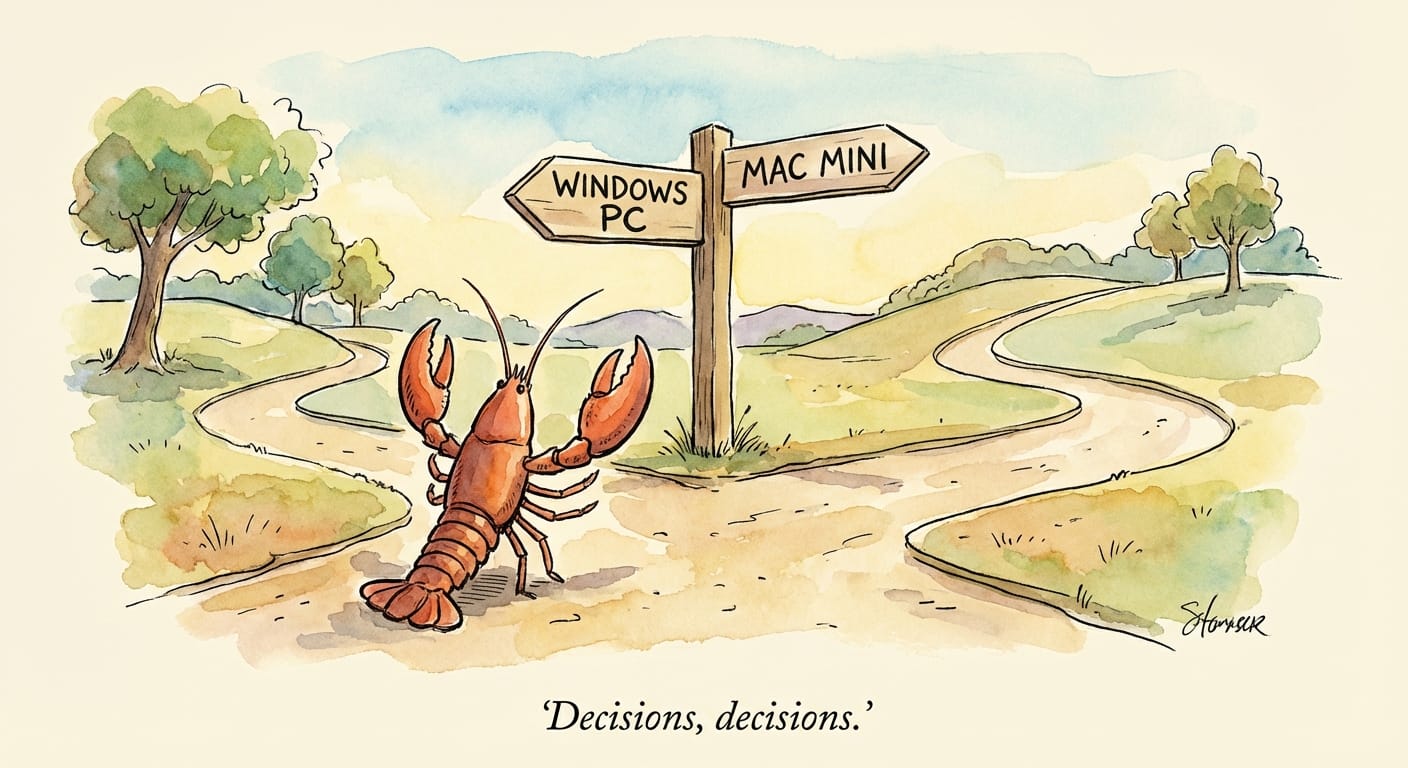
Route One: Windows with WSL2
I had a spare Windows desktop, so I started there. Someone pointed me toward WSL2, which stands for Windows Subsystem for Linux. In plain terms: it lets you run a Linux environment inside Windows without needing a separate machine. Think of it as a Linux computer living inside your Windows PC. I went with Ubuntu, which is one of the more beginner-friendly Linux distributions.
I also added something called LiteLLM to the mix. It’s a middleware layer that sits between your agent and the AI models, letting you manage which models you use and set limits on how they’re called. At the time it felt like a smart addition. More on that later.
The setup worked. But getting there was a grind.
The main issue was that WSL2 is designed to run in a terminal, which is essentially a text-only command interface. No icons, no file manager, no browser. I wanted a real graphical interface so I could see what was happening, open VS Code, test browser automations. Getting Ubuntu to display a proper desktop inside Windows is a whole separate project, and not a simple one.
On top of that, my Windows machine was a desktop sitting in another room. I set up Remote Desktop over my home network so I could access it from my MacBook. So at peak complexity my setup looked like this: MacBook connecting remotely to a Windows PC, which was running a Linux subsystem, which was running OpenClaw inside it.

It worked. But it was slow, and every time something broke I had to figure out whether the issue was Windows, WSL2, Ubuntu, or OpenClaw. Most tutorials online are written for either Linux or Windows natively, not the combination, so I was constantly adapting commands to get them to run.
I never quite felt confident about the security boundaries either. WSL2 is designed to share access between Windows and Linux in ways that make sense for developers but felt blurry for what I was trying to do. I wanted clean lines around what the agent could and couldn’t touch. That’s harder to achieve when the underlying system is intentionally porous.
Route Two: Mac Mini
Eventually I did what a lot of people in this space seem to do: bought a Mac Mini. The 16GB M-series model. It’s small, quiet, runs cool, and costs less than you’d expect for something you can leave on 24/7. It sits in a corner now and runs OpenClaw. That’s its job.
Before I installed anything, I set up the accounts properly. I created a separate standard user account specifically for OpenClaw to run from, separate from my main admin account. The difference matters: a standard account can’t install software or change system settings without admin approval. So if the agent tries to do something it shouldn’t, macOS asks for my password. That approval step doesn’t sound like much but it’s a meaningful safety layer.

I also dropped LiteLLM. With the Mac Mini, I could configure models directly in OpenClaw’s config file, which turned out to be straightforward enough that the extra middleware wasn’t adding value. One fewer thing to maintain.
The day-to-day difference was noticeable from the start. Every tool I wanted just worked: VS Code, Brave, a proper file manager. When I looked something up, the instructions worked without modification. Remote access from my MacBook to the Mac Mini is a few clicks to set up and reliable on my home network.
I briefly tried Docker as well, which is a tool that isolates your agent inside a sealed container for extra security. It worked, but the agent kept losing access to its own memory files between restarts because of how the file paths were mapped. I removed it. The dedicated account approach gave me enough separation without adding that complexity.
OpenClaw also has a built-in security audit feature that scans your configuration and flags issues. On this setup, going through those findings and addressing them felt manageable. On WSL2, I was never sure whether something flagged was a real concern or just a quirk of the environment.
So Which One?
If you have a spare Windows machine and you’re comfortable working in a terminal, WSL2 is a reasonable route. It’s not a dead end. But go in knowing it takes time and patience to get right, and the security model requires more intentional work.
If you want something that mostly just works and you don’t want to spend weekends debugging environment issues, the Mac Mini is the easier path. If budget allows and you want to run local AI models directly on the machine alongside OpenClaw, the 24GB version gives you more room to grow. Stock on those tends to be limited though.
What I’d skip: installing OpenClaw directly on a machine you use for other things, gaming, work, personal browsing, without any account separation. Shared machines make it harder to define what the agent can and can’t access. That clarity is worth the small extra effort to set up.
What I Took From This
I went into both setups thinking about security, but I didn’t have a clear picture of what that actually meant until I tried to build it. The WSL2 route made me realise that a setup you can’t easily explain to yourself is a setup you’re going to have trouble trusting. The Mac Mini route gave me something simpler to reason about.
The agent is the same either way. What changes is how clearly you understand the boundaries around it.
For me, that clarity was worth it. And it actually gets fun after you have done this crucial security setup part.